Donors
The Donors module is used to manage all donor records — individuals, couples, and organizations.
Definitions
Constituent Types
Categories applied to a donor record that describe how a person or organization relates to the library (e.g., individual donor, corporate sponsor, board member). The list of types was sourced from Buffalo Library’s historical data and is set during migration.
Joint Donors
A donor record representing two people (e.g., a married couple, a family) linked together under one record. Joint donor names are joined with & (e.g., “John & Jane Smith”). The record is searchable by either partner’s name. Salutation for joint records is entered manually rather than auto-constructed, since paired records are not always romantic couples.
Preferred Addressee
The full name as it appears in the address block at the top of an acknowledgement letter. This is distinct from the salutation. Example: “Mrs. Patricia Burgess”.
Preferred Salutation
The greeting line used inside the letter body (e.g., “Dear Mrs. Burgess”). It is constructed from the donor’s selected prefix/title plus their preferred addressee name. Both fields are also surfaced on public-facing donation pages so donors can select their own title and preferred name.
Creating a Donor
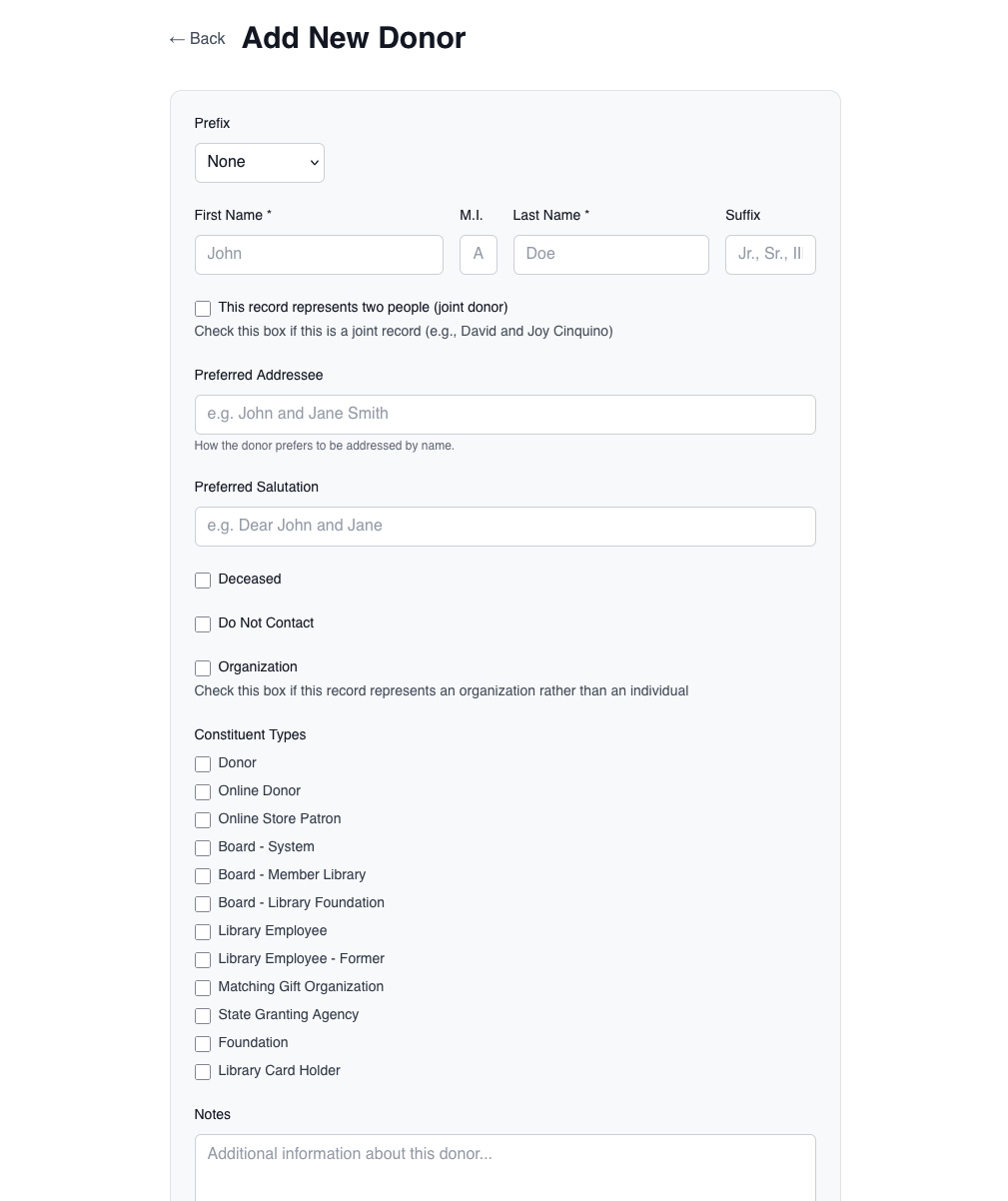
When creating a new donor record, you can set:
- Salutation / Prefix — title such as Mr., Mrs., Dr.
- First and Last Name
- Suffix — Jr., Sr., etc.
- Spouse / Partner — for coupled donor records
- Constituent Types — one or more categories
- Notes — any additional context about the donor
After saving, you can add:
- Multiple addresses
- Multiple email addresses
- Multiple phone numbers
Viewing a Donor
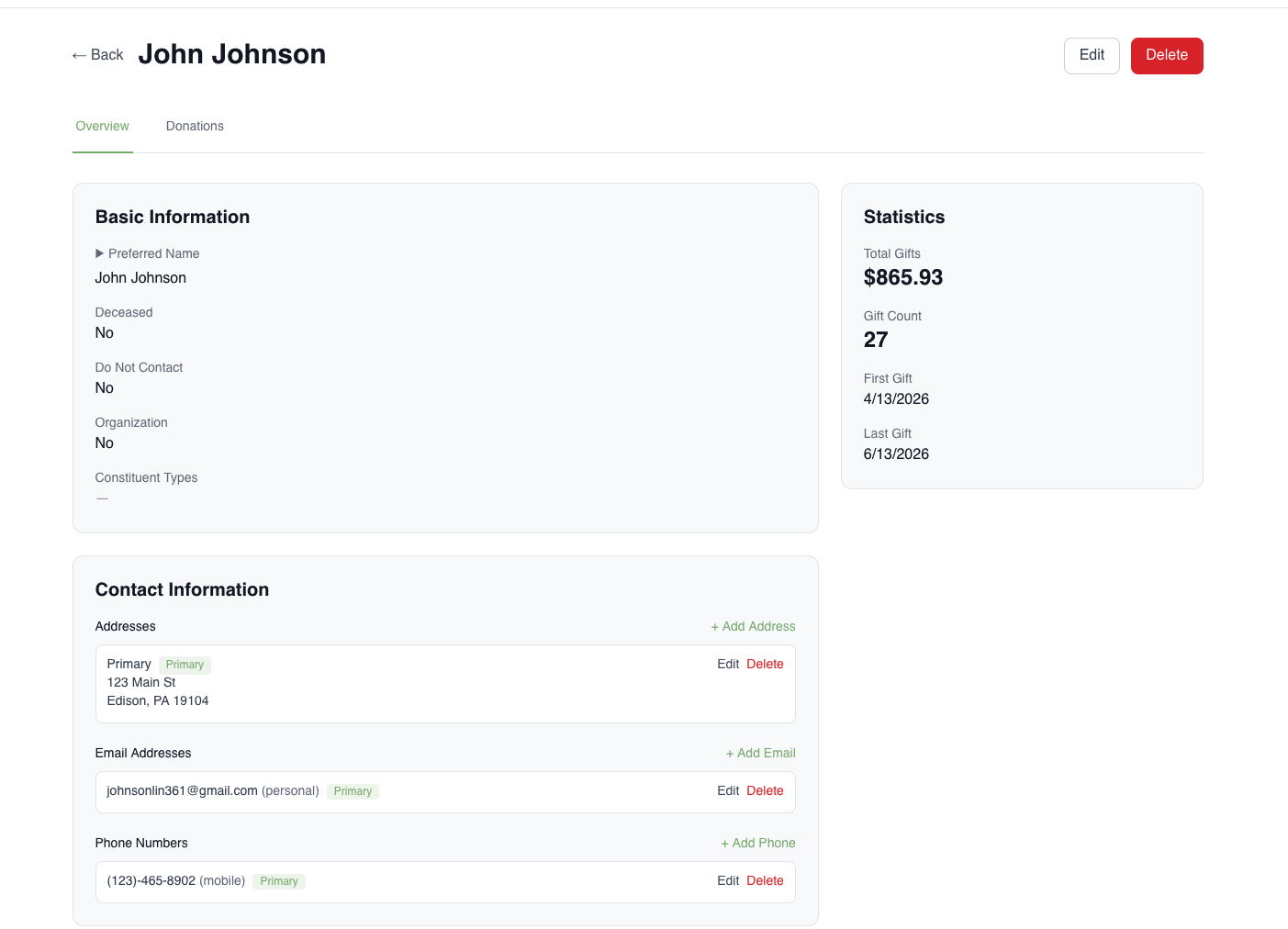
The donor profile shows:
- All contact information
- Full donation history
Searching for Donors
Search supports partial and near matches across all combinations of name parts, including:
- Hyphenated last names
- Multi-word last names (e.g., maiden name + married name combined, like “Testa Cinquino”)
- Spaces within first names
Searching returns more results rather than fewer — if in doubt, search broadly and review the list.
Merging Duplicate Donors
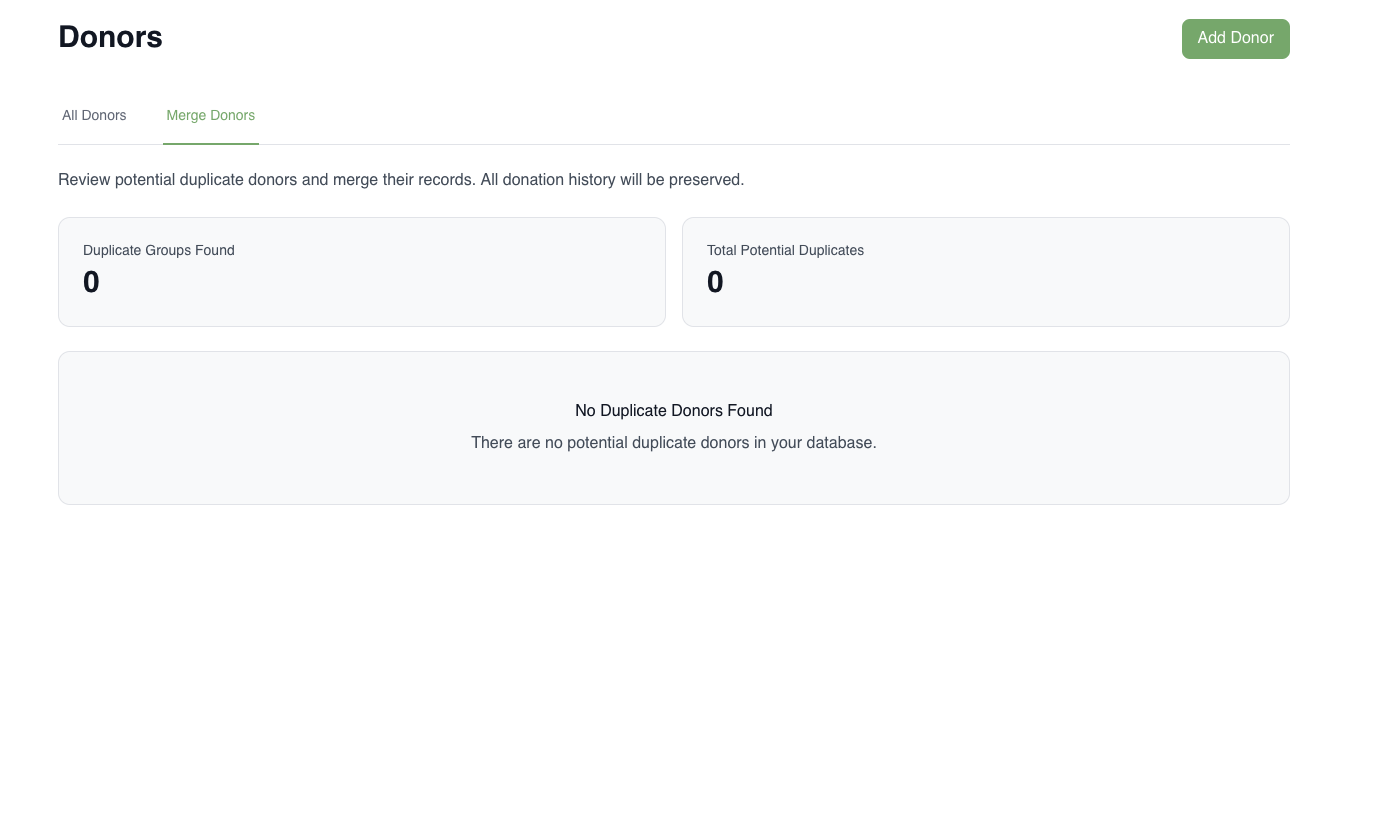
The system automatically flags potential duplicate donors. When a duplicate is detected:
- Navigate to either of the duplicate records
- Use the Merge action
- Confirm which record to keep as the primary
After merging, searching for the donor will return the merged record with the combined information.
Tip: Duplicates commonly occur when a donor makes an online donation and the system creates a new record because it couldn’t match their name to an existing one.