Donations
The Donations module is used to record and manage all donations, whether entered manually by staff or processed online via Stripe.
Recording a Donation
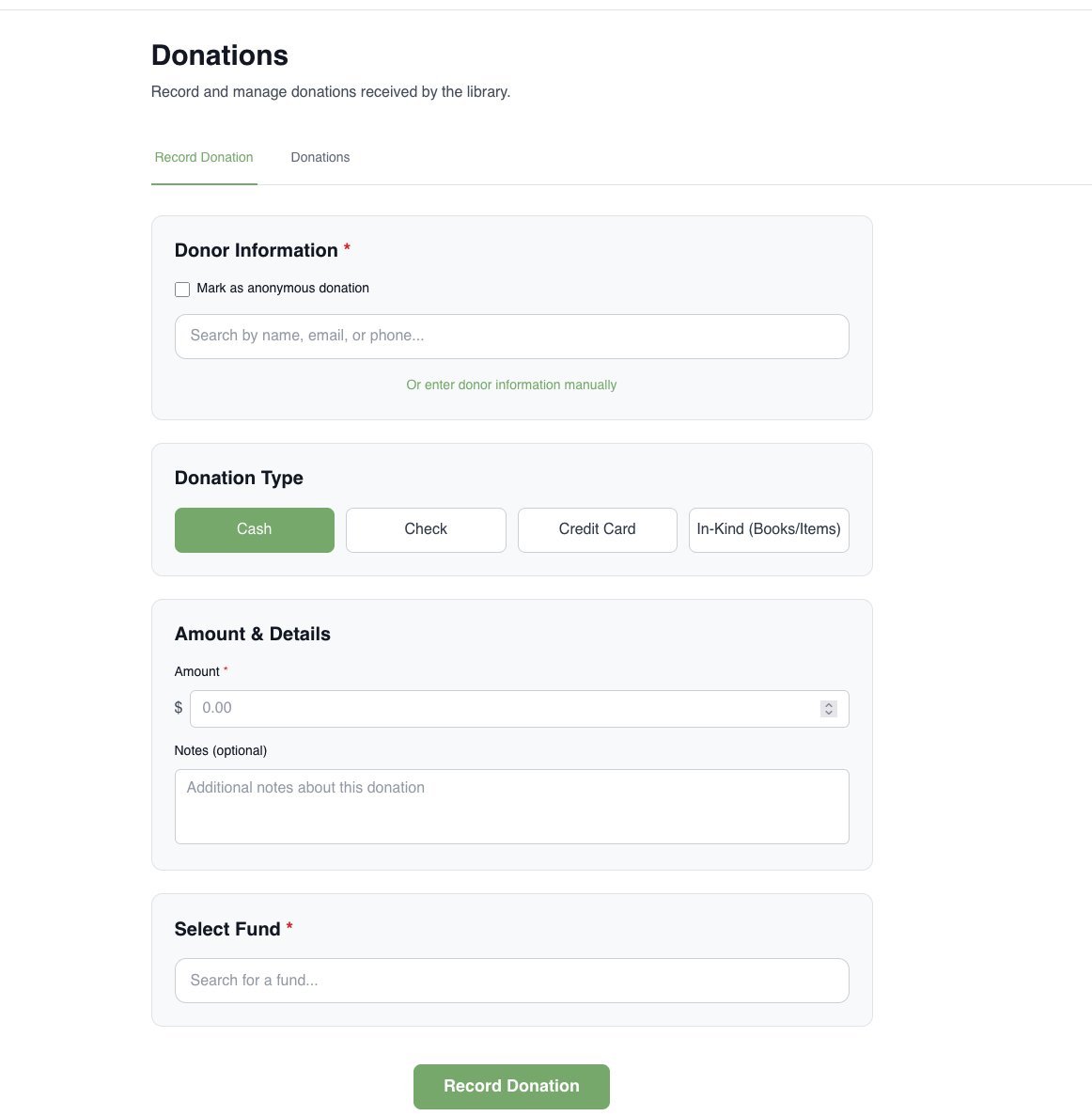
To record a donation, navigate to the Donations tab and select the appropriate donation type:
| Type | Notes |
|---|---|
| Cash | Amount only |
| Check | Amount, check number, check date |
| Credit Card | Amount, card type |
| In-Kind | Description and optional estimated value |
For each donation you will also select:
- Fund — which fund the donation is assigned to (only active and online funds appear)
- Date — defaults to today; can be set to any date
- Donor — the donor record to link the donation to
In-Kind Donations
In-kind donations have an optional estimated value field. Example entry:
- Description: “Three books on computer science”
- Estimated value: $30 (optional)
Viewing Donations
Click on the “Donations” tab on the Donations page. By default, you’ll see all donations recorded in the system sorted by most recent.
Editing a Donation
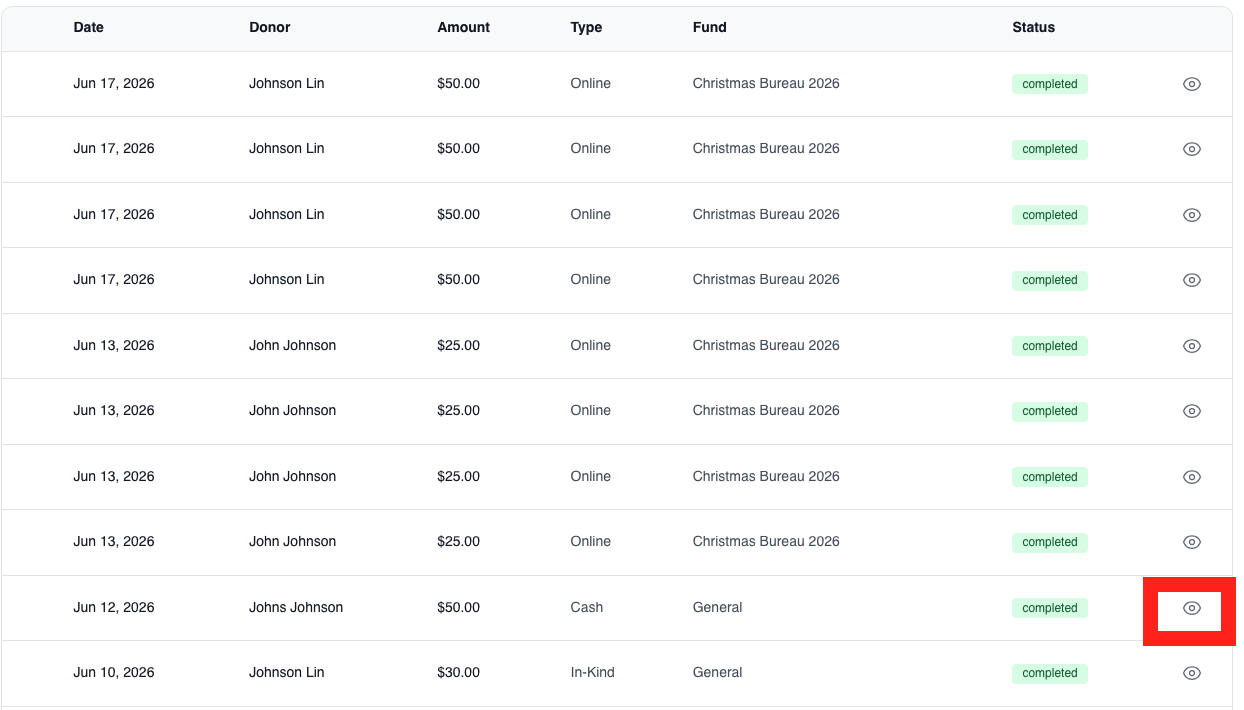
Existing donation records can be edited. Click on the eye icon to view more details and then “Edit”.
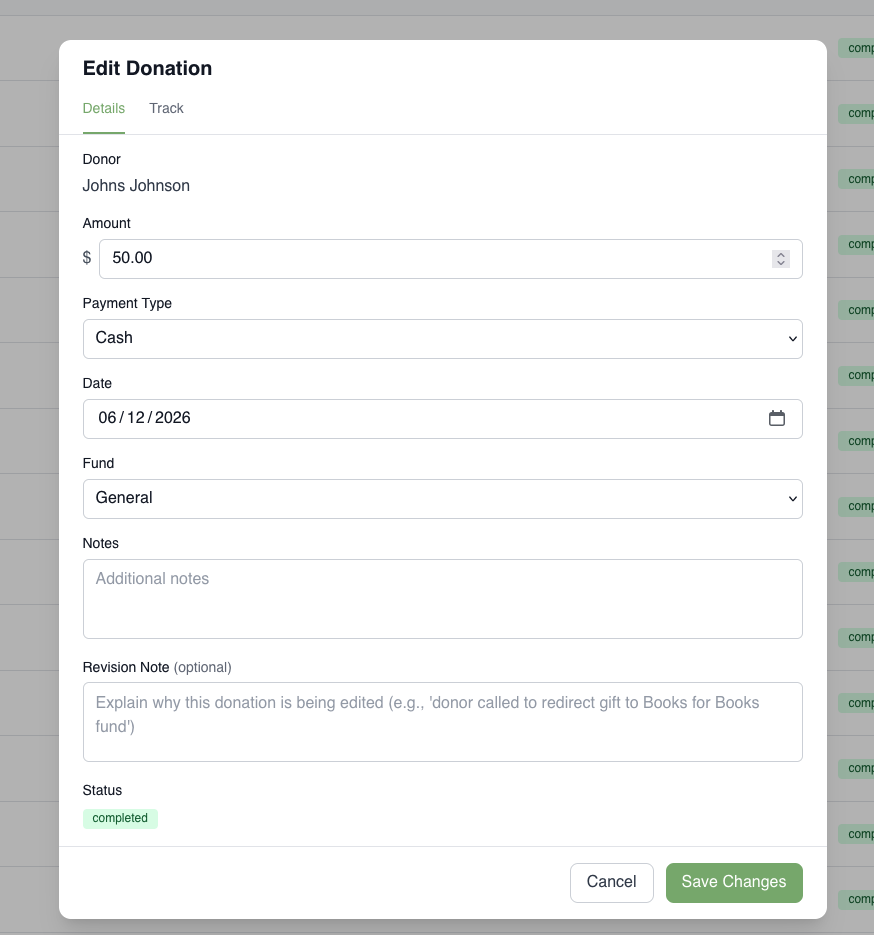
When you make a change (e.g., correcting an estimated value you forgot to record initially), the system allows you to add a note explaining the change. This creates an audit trail.
Example note: “Forgot to record estimated value at time of entry.”
Online donations cannot be edited. Stripe transactions have immutable timestamps and amounts. If an online donation has an error, contact FSH Tech.
Filtering Donations
On the donations list view, you can filter by:
- Date range
- Fund
- Staff member who recorded the donation
- Online donations (separate filter option)
Online Donations
Online donations are processed automatically when a donor completes a payment on a public fund page. The system:
- Charges the donor via Stripe
- Sends a receipt email using the fund’s assigned template (or the default template)
- Attempts to match the donor to an existing record by name
- If no match is found, creates a new donor record automatically
Stripe Processing Fee
The Stripe fee (2.9% + $0.30) is deducted from the amount the library receives. Donors are shown the option to cover this fee themselves before completing payment. If they opt in, the fee is added to their total and the library receives the full donation amount.
Recurring (Scheduled) Donations
Donors can set up recurring donations directly on a fund’s public donation page. The system supports monthly, quarterly, and annual frequencies. Donors can also choose a future start date if they want their first charge to happen later.
How a Recurring Donation Works
Immediate Recurring
- Donor fills out the donation form and selects a recurring frequency
- Donor completes payment via Stripe checkout
- Their card is charged immediately for the first payment
- A receipt email is sent automatically (see Email Flow below)
- Stripe automatically charges the same card on each subsequent billing cycle
Future-Dated Recurring
- Donor selects a recurring frequency and picks a future start date
- Donor completes a card setup in Stripe — no charge occurs today
- A confirmation email is sent immediately with the scheduled start date
- On the start date, Stripe charges the card and the donation record is created
- Recurring billing continues from there on the chosen schedule
How Recurring Donations Appear in the System
Each time a recurring donation bills, a new donation record (Gift) is created automatically. These records are marked as recurring and linked by a shared subscription ID, so you can see the full history of a recurring donor’s payments.
Staff do not need to do anything to process recurring billing — it happens automatically via Stripe.
Email Flow for Recurring Donations
The system sends emails at key points in the lifecycle of a recurring donation. All emails include a subscription management link that lets the donor manage their donation themselves.
| Event | Email Sent? | What It Says |
|---|---|---|
| Immediate recurring checkout completes | Yes | Receipt for first payment; includes management link |
| Future-dated checkout completes (card saved, no charge yet) | Yes | Confirms scheduled start date and amount; no receipt |
| Each subsequent billing cycle charges successfully | Yes | Receipt for that payment; includes management link |
| Admin or donor updates the donation amount | Yes | Shows old amount → new amount and next billing date |
| Payment fails | No | Stripe handles retries internally; subscription is marked past due |
| Subscription is canceled | No | No automated email; contact the donor directly if needed |
Subscription Management Link
Every receipt email for a recurring donation includes a link that takes the donor directly into Stripe’s self-service portal. From there, donors can:
- Update their payment method (e.g., a new credit card)
- Change their donation amount
- Cancel their recurring donation
Staff can also cancel or update recurring donations from within the admin portal without needing to contact the donor.
Handling a Failed Payment
If a recurring charge fails:
- The donation is marked past due in the system
- Stripe automatically retries the charge over the next several days
- If retries keep failing, contact the donor and ask them to update their payment method via the link in their last receipt email